Difference between revisions of "Formation Editor"
Jump to navigation
Jump to search
m (Protected "Formation Editor" ([Edit=Allow only administrators] (indefinite) [Move=Allow only administrators] (indefinite))) |
Mark Bedish (talk | contribs) |
||
| Line 1: | Line 1: | ||
| − | '' | + | ''Formations, also referred to as reservoirs or pools define what rock formation a site produces from. This process allows you to manage the formations that are available to be assigned to sites.'' |
| − | ---- | + | ---- |
◄ [[Site]] | ◄ [[Site]] | ||
| − | |||
| − | + | [[File:FormationEditorX3.png|right|border|500px]] | |
| − | + | ==== Where can I find it? ==== | |
| − | + | You can find this process on the main menu under Site | Formation Editor or by using the screen search at the top of the screen. | |
| − | + | ==== How do I use it? ==== | |
| − | + | When the formation editor screen is displayed it will list all of the currently defined formations. You may add, edit, and/or remove formations and their codes by using the buttons at the top of the screen. You may also click the column headers to sort by any of the columns. | |
| − | + | ==== Adding a formation ==== | |
| − | + | *Click the button labeled 'Add' at the top of the screen to open the Add Formation popup window. | |
| + | *Specify the name of the formation, the regulatory code if needed and select the state the field is in from the dropdown. | ||
| + | *Click the button labeled 'Add' at the bottom of the popup window to add the formation. | ||
| − | + | ==== Editing an existing formation ==== | |
| − | |||
| − | |||
| − | |||
| − | |||
| − | |||
| − | |||
| − | |||
| − | |||
| + | *Select the formation you wish to edit and click the button labeled 'Edit' at the top of the screen to open the popup edit window. | ||
| + | *Make the necessary changes to the name or code. The state may not be changed. | ||
| + | *Click the button labeled 'Save Changes' in the popup window to save your changes. | ||
| + | ==== Remove an existing formation ==== | ||
| + | *Select the formation you wish to remove and click the button labeled 'Remove' at the top of the screen. | ||
| + | *Click 'Yes' in the removal confirmation dialog that is displayed. | ||
| + | ==== Usage Notes ==== | ||
| + | :The name of the formation must be unique within a state. | ||
| + | :Formation codes should be assigned based on the agency requirements | ||
| + | :You may not remove a formation record unless no sites are currently assigned that field. | ||
Copyright © {{CURRENTYEAR}} by PRAMS Plus LLC. All Rights Reserved. | Copyright © {{CURRENTYEAR}} by PRAMS Plus LLC. All Rights Reserved. | ||
Latest revision as of 16:12, 3 June 2026
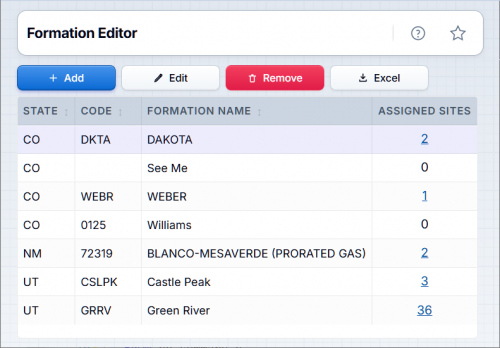
Formations, also referred to as reservoirs or pools define what rock formation a site produces from. This process allows you to manage the formations that are available to be assigned to sites.
◄ Site

Contents
Where can I find it?
You can find this process on the main menu under Site | Formation Editor or by using the screen search at the top of the screen.
How do I use it?
When the formation editor screen is displayed it will list all of the currently defined formations. You may add, edit, and/or remove formations and their codes by using the buttons at the top of the screen. You may also click the column headers to sort by any of the columns.
Adding a formation
- Click the button labeled 'Add' at the top of the screen to open the Add Formation popup window.
- Specify the name of the formation, the regulatory code if needed and select the state the field is in from the dropdown.
- Click the button labeled 'Add' at the bottom of the popup window to add the formation.
Editing an existing formation
- Select the formation you wish to edit and click the button labeled 'Edit' at the top of the screen to open the popup edit window.
- Make the necessary changes to the name or code. The state may not be changed.
- Click the button labeled 'Save Changes' in the popup window to save your changes.
Remove an existing formation
- Select the formation you wish to remove and click the button labeled 'Remove' at the top of the screen.
- Click 'Yes' in the removal confirmation dialog that is displayed.
Usage Notes
- The name of the formation must be unique within a state.
- Formation codes should be assigned based on the agency requirements
- You may not remove a formation record unless no sites are currently assigned that field.
Copyright © 2026 by PRAMS Plus LLC. All Rights Reserved.